Yes, you can put more than one photo on a single Pin, and there are two ways to do it. You can build a carousel Pin, where people swipe through your photos one at a time, or a collage-style grid Pin, where several photos sit together in one composed image. A carousel is usually what people mean when they ask this question, so that’s where most of this guide sits, with the collage option and the paid ad version covered too.
Here’s how each one works, how many photos you’re allowed, and what to do when the option to add more won’t show up.
Start from your Pinterest business profile. Carousels are created from the same account you Pin from every day.
Carousel vs. collage: which one do you actually want?
Before you upload anything, it helps to know what you’re building, because the two formats behave very differently once they’re live.
A carousel Pin holds up to five separate photos. Each one keeps its own frame, and viewers swipe sideways to move through them (you’ll see a little “1/2”, “2/2” counter on the Pin). Every image can even point to its own link, which makes carousels handy for step-by-steps, product ranges, or before-and-afters. That per-frame linking is also why carousels are a smart way to use Pinterest to drive traffic.
A collage or grid Pin takes several photos and merges them into one still image. Nobody swipes; they see everything at once, arranged in a layout. Think mood boards, room styling, or a “shop the look” grid.
| Carousel Pin | Collage / grid Pin | |
|---|---|---|
| How photos appear | Separate, swipeable frames | Combined into one image |
| Max photos | Up to 5 | Several (depends on layout) |
| Per-photo links | Yes | No |
| Best for | Steps, product sets, before/after | Mood boards, styling, “shop the look” |
Pick the one that matches how you want people to experience your photos. Once you know that, the actual creation steps are quick.
How to add multiple photos to a carousel Pin
The flow is the same idea on desktop and mobile, so follow the version that suits how you’re working.
1. Open the Pin creator.
From your profile, open the create menu. On desktop you’ll find Create Pin under Create content; if you’re setting this up as an ad, choose Create Pin for ad instead (more on the ad route below). On the mobile app, tap the + to start a new Pin.
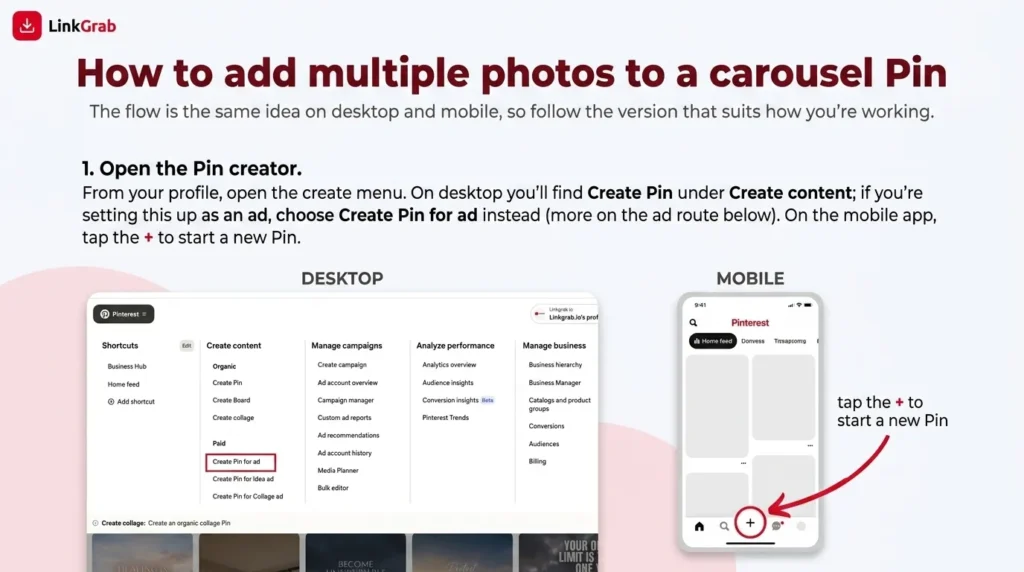
The create menu. “Create Pin for ad” sits under Create content on desktop.
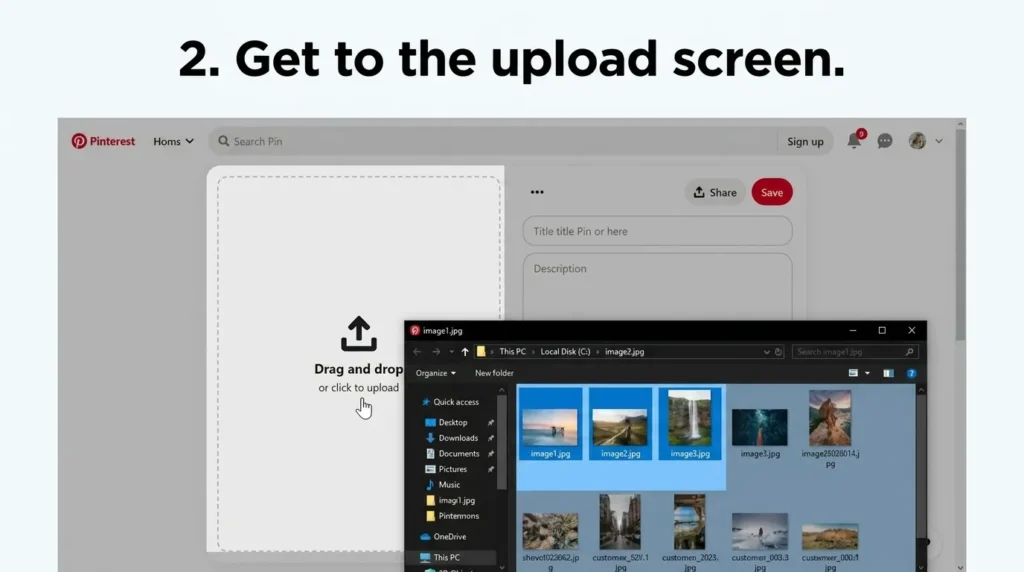
2. Get to the upload screen.
You’ll land on a blank Pin with a Drag and drop or click to upload area on the left. This is where the multiple-photo part happens, and the trick is selecting more than one file at the same time.
The upload area. Pinterest recommends .jpg files under 20MB or .mp4 video under 2GB. The same file rules apply if you want to post a GIF on Pinterest.
3. Select all your photos at once.
Click the upload area, then in the file window hold Ctrl (Windows) or Cmd (Mac) and click each photo you want. Selecting two or more images is what tells Pinterest you’re making a multi-photo Pin rather than a single one. (This is a different action from tidying your boards, where you’d select multiple Pins on Pinterest at once.)
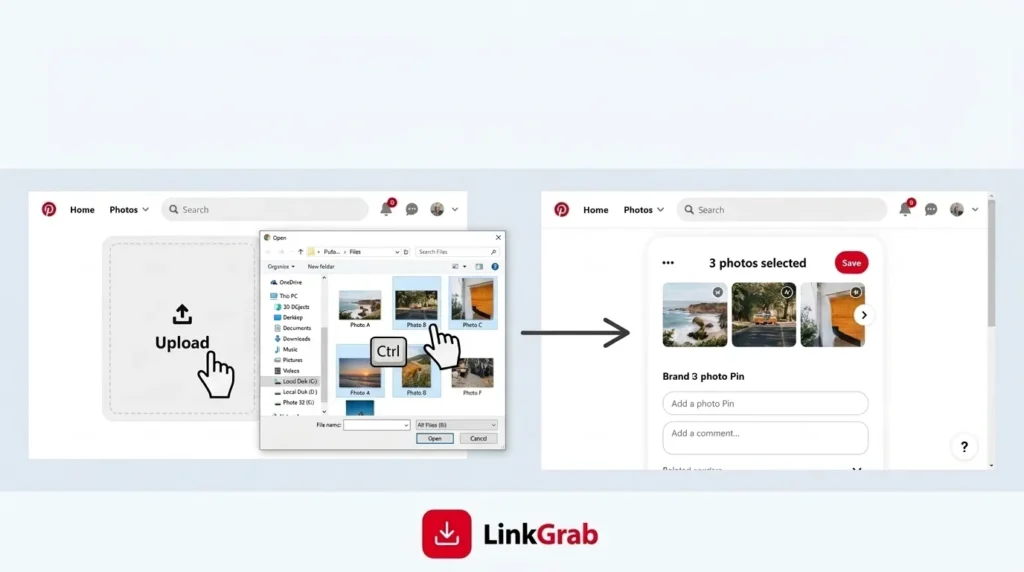
Hold Ctrl or Cmd and click to select every photo you want in one go.
4. Choose a carousel or a grid.
As soon as you upload more than one photo, Pinterest shows a “Pick a Pin” window with two choices: Create a carousel or Create a grid. Pick Create a carousel for swipeable frames, or Create a grid to combine everything into one collage image. This step is easy to rush past, but it’s the moment that decides which format you get.
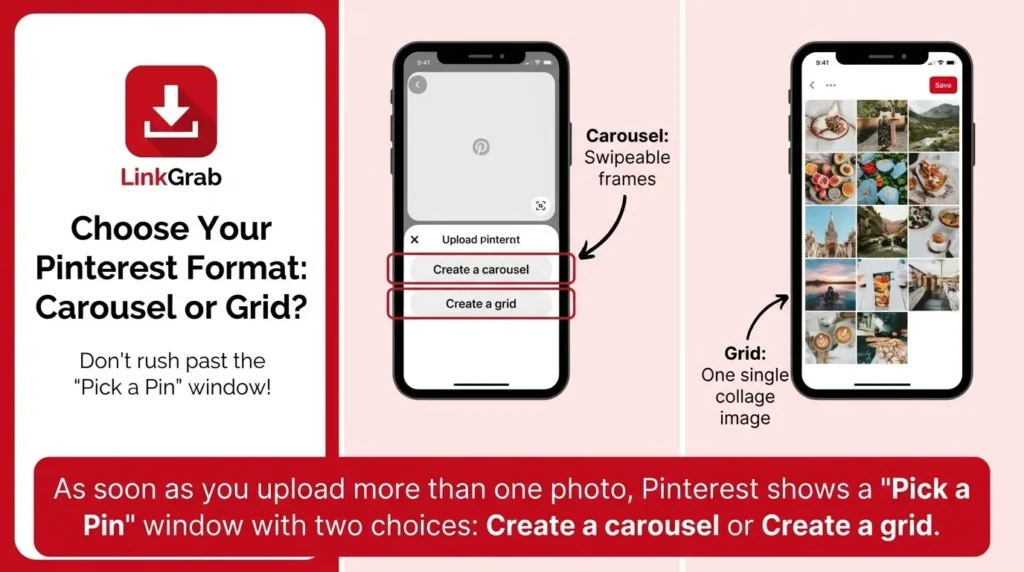
“Pick a Pin.” Carousel keeps photos separate and swipeable; grid combines them into one image.
5. Reorder, edit, and add your details.
Now you can tidy things up. Hover over any frame to reveal the edit, reorder, and delete icons, and drag the little dots at the bottom to change the running order. Your first photo is the cover, so put your strongest shot there.
Add your title and description (it’s worth learning how to write Pinterest descriptions that actually get clicks), then decide on links. Leave “Use the same text and URL for each image” checked to apply one destination to the whole carousel, or uncheck it to give each photo its own title and link. Add alt text while you’re here too; it helps accessibility and gives search engines and AI tools something to read, the same way adding keywords to Pinterest does.
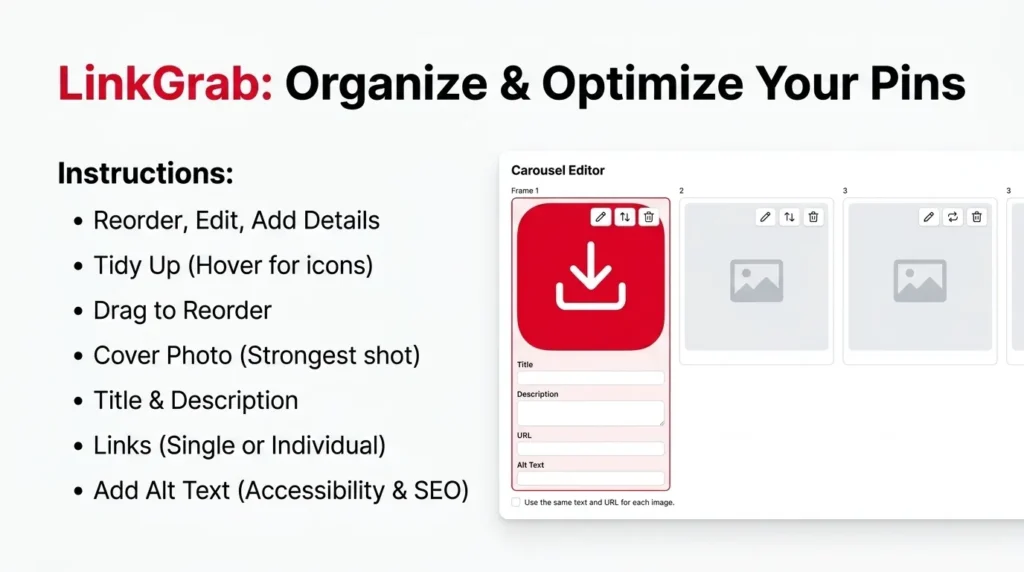
Each frame has edit, reorder, and delete controls, plus the option to reuse one text and URL across every image.
6. Publish.
Hit Publish (or set Publish at a later date if you’re scheduling). You’ll get a “You created a Pin!” confirmation, and from there you can view it live or promote it.

The confirmation screen once your multi-photo Pin goes live.
Open the Pin and you’ll see the finished carousel: swipeable frames, dots underneath, and a Visit site button pulling through your link.
How the finished carousel looks to viewers, with swipe dots and a Visit site link.
How many photos can you add to one Pin?
A carousel holds up to five photos, no more. A grid or collage Pin can combine several images into a single layout, and the exact number depends on the arrangement you choose. If you’ve hit a wall at five, you’re not doing anything wrong; that’s simply the carousel limit.
Adding multiple photos to a Pinterest ad (carousel ads)
If your goal is a paid campaign, the multi-photo flow lives under Create Pin for ad, and it runs almost identically to the organic steps above. Upload two or more images, choose Create a carousel in the “Pick a Pin” window, arrange your frames, and add your titles, descriptions, and destination links.
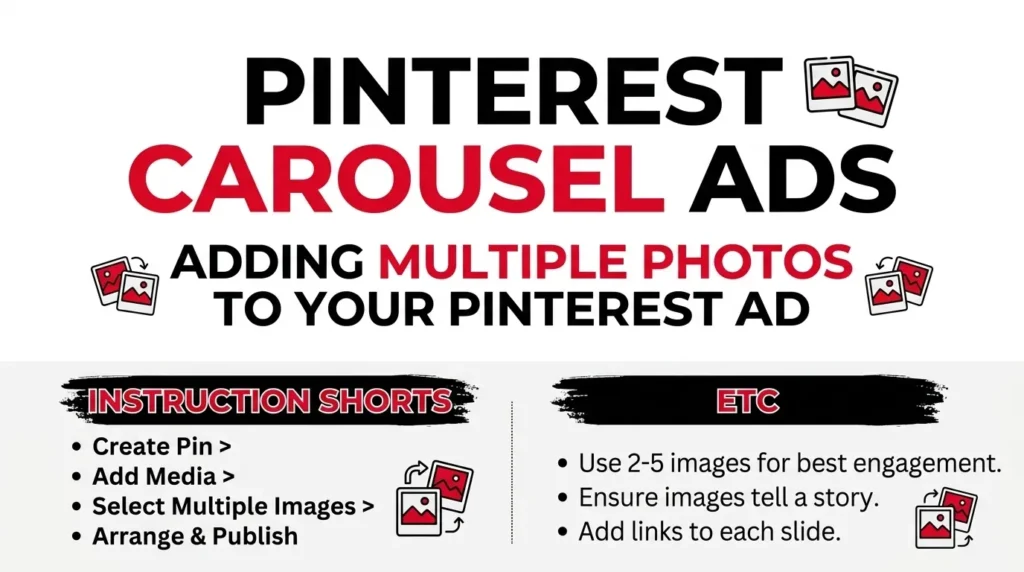
The main difference comes after you publish: instead of just going live, you’ll be offered Promote Pin, which pushes your carousel into an ad campaign where you set the audience, budget, and dates. Everything about the photos themselves (the five-image limit, per-frame links, the cover-image rule) works the same way it does for a normal Pin.
Why can’t I add multiple photos to my Pin?
If there’s no option to add a second photo, it’s almost always one of these:
You uploaded one file instead of several. The carousel/grid choice only appears once Pinterest sees two or more images. Go back and select them together.
Your app is out of date. Multi-image Pins can be missing on older app versions. Update Pinterest, then try again.
You’re on a personal setup that’s limited. Some carousel and ad features lean on a business account. Switching to a free business account usually unlocks them (and if you ever change your mind, here’s how to delete a Pinterest business account).
A file was rejected. An oversized or unsupported file can quietly drop out. Stick to .jpg images under 20MB (or .mp4 video under 2GB) and re-add anything that didn’t stick.
Work through those in order and the option almost always comes back.
A few things that make multi-photo Pins perform better
Lead with your best image, since the first frame is the cover that decides whether anyone swipes at all. Keep a consistent look across the set, with similar lighting, framing, or color, so the carousel feels like one story rather than a random pile of photos. And write real alt text for each image instead of leaving it blank; it’s a small habit that helps your Pins surface in search and in AI-generated answers.
Consistent, high-quality carousels are also one of the building blocks behind going viral on Pinterest. And if your reach ever dips after posting, it’s worth understanding why your Pinterest monthly views decrease before you change your whole strategy.
Good source photos matter as much as the layout. If you’re gathering reference images or saving inspiration in full quality first (for example, learning to save Pinterest photos to your camera roll), our Pinterest video downloader lets you grab Pinterest videos in HD before you build your own Pin.s like Linkgrab.io let you download Pinterest videos in HD before you build your own Pin.
FAQs
How many photos can you put in one Pinterest Pin?
A carousel Pin holds up to five photos. A collage or grid Pin can combine several images into one layout, with the number depending on the arrangement you pick.
Can you add multiple photos to a Pin on the Pinterest app?
Yes. Tap the + to start a new Pin, then select two or more photos together the app will let you build a carousel from them. If the option is missing, update the app to the latest version.
What’s the difference between a carousel and a collage Pin?
A carousel keeps each photo as a separate, swipeable frame, and each can carry its own link. A collage merges several photos into a single still image that people view all at once.
Can each photo in a carousel have its own link?
Yes. Uncheck “Use the same text and URL for each image” while creating the Pin, and you can give every frame its own title and destination link.
Why is there no option to add multiple images to my Pin?
Usually because only one file was uploaded, the app is out of date, or a file was too large. Select all your photos at once, update Pinterest, and keep images under 20MB.
Can you add more photos to a Pin after publishing it?
Photos are best added while you’re creating the Pin. Once it’s live, the reliable route is to edit within the limits Pinterest allows or recreate the Pin with your full set of images.