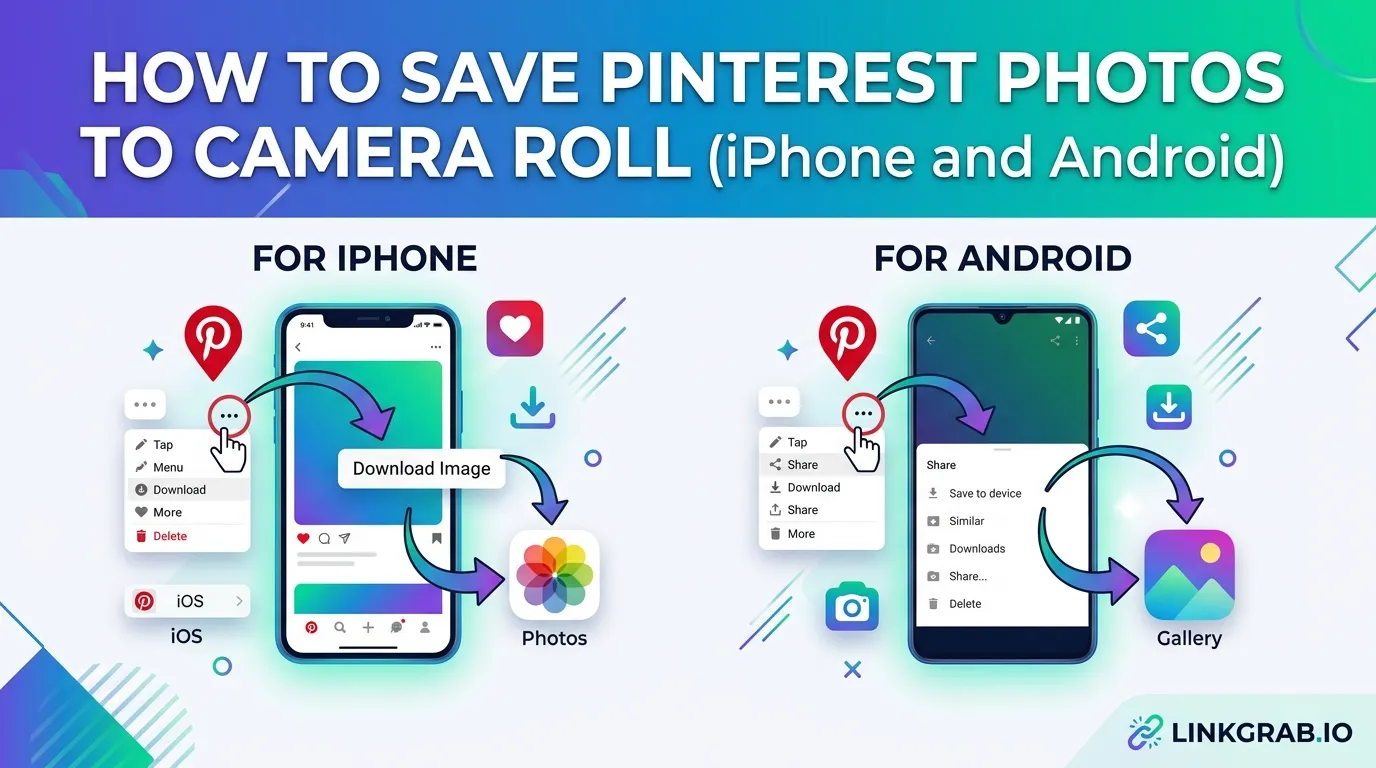
Saving a Pinterest photo should take three taps. For most people, it does. But a surprising number of users hit a wall – Pinterest asks for a permission they already granted, the save button disappears, or the photo lands somewhere they can’t find it. This guide covers the native steps for both iPhone and Android, the most common reasons the process breaks, and a faster alternative for when Pinterest’s built-in download won’t cooperate.
Quick Answer
The fastest way to save a Pinterest photo to your Camera Roll on iPhone:
- Open the Pinterest app and tap the pin you want to save
- Tap the three-dot menu in the bottom-right corner of the pin
- Tap “Download image” from the options that appear
- If prompted, tap “Allow Access to All Photos” to grant Pinterest permission
The photo saves directly to your Camera Roll under Recents in the Photos app. If you don’t see it right away, check for a Pinterest folder inside your Photos app – iOS creates one automatically for downloaded pins.
Need to save multiple photos at once? A Pinterest photo downloader handles bulk downloads faster than the app’s one-at-a-time save.
How to Save Pinterest Photos to Camera Roll on iPhone
Using the Pinterest App on iPhone
This is the most direct method and works on any iPhone running a current version of the Pinterest app.

- Open the Pinterest app and find the pin you want to save
- Tap the pin to open it in full view
- Tap the three-dot icon (…) in the bottom-right corner of the image
- Select “Download image” from the menu
- A permission prompt will appear the first time – tap “Allow Access to All Photos”
- Open your Photos app and check Recents – your image is there
If you dismissed the permission prompt by accident and the download silently fails, go to Settings > Pinterest > Photos and set it to “Add Photos Only” or “Full Access.” Then try the download again. This fixes the issue in almost every case.
One thing worth knowing: Pinterest saves to a dedicated Pinterest album inside your Photos app, not directly to the main Camera Roll timeline. The photos are there – they just live in a sub-album.
Saving from Pinterest in Safari (No App)
If someone sends you a Pinterest link and you open it in Safari instead of the app, the download path is different:
- Open the Pinterest link in Safari
- Tap the pin image to load it in full size
- Long-press on the image until a menu appears
- Tap “Save to Photos” or “Add to Photos”
The image saves to your Camera Roll immediately – no permission prompt needed since Safari uses your existing iOS photo library access. This method also works when the Pinterest app’s download button is grayed out or missing.
How to Save Pinterest Photos to Camera Roll on Android
Using the Pinterest App on Android
The steps on Android are nearly identical to iPhone, but a few details differ depending on which Android version you’re running.

- Open the Pinterest app and tap the pin you want to save
- Tap the three-dot icon (…) – on most Android devices this appears in the top-right corner of the pin (not the bottom-right like on iPhone)
- Tap “Download image”
- Grant storage permission if prompted
Android 12 and earlier: A broad storage permission prompt appears. Tap “Allow” to give Pinterest access to save files. You only see this once.
Android 13 and later: Android uses more granular media permissions. If prompted, select “Photos and Videos” specifically do not tap “Deny” or the download will silently fail.
Once saved, open your Gallery or Photos app. Look in Downloads or a Pinterest folder – Android does not always place the image in the main camera roll timeline, but it will be in one of those two locations.
Can’t find the file? Open your file manager app and check Internal Storage > Pictures > Pinterest. Downloaded pins always land there, even when they don’t appear in the Gallery automatically.
Why Your Pinterest Photo Won’t Save to Camera Roll
This is the section most guides skip. If the steps above didn’t work, one of these is the reason:
The download button isn’t showing. Some pin creators disable the download option on their content. If you tap a pin and the three-dot menu has no “Download image” option, the creator has blocked it. The only workarounds are a screenshot (lower quality) or a Pinterest Video downloader that fetches the original file directly from the URL.
Photo permission was denied and never reset. On iPhone, if you tapped “Don’t Allow” when Pinterest first asked for photo access, Pinterest stops asking again. It silently fails every download. Fix: Settings > Privacy & Security > Photos > Pinterest > Select “Add Photos Only”.
The photo saved to Files, not Photos. On some iOS versions, Pinterest sends downloads to the Files app instead of the Photos app. Check Files > On My iPhone > Pinterest to find them. You can then long-press any image there and tap “Save Image” to move it to your Camera Roll.
The pin links to an external website. Not all Pinterest pins host images directly on Pinterest. Some pins point to a blog or e-commerce site. When you tap “Download image” on these, Pinterest grabs whatever it can — sometimes a low-resolution thumbnail, sometimes nothing at all. In this case, visiting the source site and saving from there gives better results.
Storage is full. This sounds obvious but it causes silent failures. Pinterest does not show an error message when your device runs out of space — the download simply does nothing.
Native Pinterest Save vs. Third-Party Downloader
Pinterest’s built-in save feature works fine for most individual images, but it has real limitations:
| Pinterest App (Native) | LinkGrab.io | |
|---|---|---|
| Single photo save | Yes | Yes |
| Bulk / board download | No | Yes |
| Original image quality | Compressed | Full resolution |
| Works on blocked downloads | No | Yes |
| No app required | No | Yes (browser only) |
| Works on desktop | Limited | Full support |
If you regularly save inspiration boards, product collections, or content for reposting, saving one image at a time through the app adds up fast. A tool that lets you download a full Pinterest board in one go removes that friction entirely.
Safety and Copyright Note
Saving a Pinterest photo for personal use a recipe you want to try, a design you’re using as a mood board reference, an outfit you want to recreate is standard behavior and what Pinterest’s download feature was built for. Republishing someone else’s original photography or artwork without credit or permission is a separate issue and worth keeping in mind before sharing saved images publicly.
FAQs
Why did my Pinterest photo save to a folder instead of my main Camera Roll?
iOS creates a Pinterest sub-album inside the Photos app for downloaded pins. Your photo is there open Photos, scroll down to Albums, and look for a Pinterest album. It does not affect the photo at all; it’s just organized separately.
Can I save Pinterest photos without the app?
Yes. Open the pin in Safari on iPhone, long-press the image, and tap “Save to Photos.” On Android, open the pin in Chrome, long-press the image, and tap “Download image.” Both methods work without the Pinterest app installed.
Why is the “Download image” option missing on some pins?
Pin creators can disable downloads on their content. If the option is missing, the creator has turned it off. A screenshot is the simplest workaround for personal use, or you can use a browser-based downloader that pulls the image directly from the URL.
Does saving a Pinterest photo reduce the image quality?
Sometimes. Pinterest compresses images when you download through the app, particularly on older versions. If you need full-resolution files — for printing, editing, or design work a dedicated Pinterest image downloader fetches the original at full quality rather than the app’s compressed version.
Where do Pinterest downloads go on Android?
They save to your Gallery app, usually under a Pinterest folder or in your Downloads folder. If you can’t find them in the Gallery, check Internal Storage > Pictures > Pinterest using your phone’s file manager.
3 thoughts on “How to Save Pinterest Photos to Camera Roll (iPhone and Android)”