You found the perfect GIF, dropped it onto a board, and… nothing. It just sits there. No loop, no motion, no life. If that’s the moment that sent you searching, take a breath. You didn’t break anything. Pinterest simply handles GIFs differently from Instagram or X, and hardly anyone mentions that until after you’ve hit publish and stared at a frozen image, wondering what went wrong.
So let’s sort it out properly: how to post one, why it sometimes refuses to move, and what to do when it won’t.
Table of Contents
Can you post GIFs on Pinterest?
Yes, but they won’t always animate the way you’d expect. Pinterest accepts GIF uploads, yet an animated GIF usually shows up as a still image in the feed and on your board. For motion you can count on, the smarter move is to convert the GIF into a short MP4 and post that as a video Pin instead.
In other words, it’s a “yes, with an asterisk.” And that asterisk is the whole reason your GIF froze.
Why your GIF won’t move on Pinterest
It all comes down to how Pinterest stores and shows animated files. Once that clicks, every frozen-GIF problem suddenly makes sense.
How Pinterest reads a GIF
Upload a GIF and Pinterest treats it as an image first. In the feed and on boards, you see a single static frame. The animation only wakes up, sometimes, once a person opens the Pin on its full detail page. Plenty of people assume the upload failed at this point. It didn’t. The file is sitting right there; it’s just not playing where you happen to be looking.
Why it leans on MP4
Animated GIFs are bulky. A few seconds of looping can turn into a surprisingly heavy file, and that’s a problem for a feed built to fly past your thumb. MP4 solves it: same loop, a fraction of the weight, and it plays smoothly. That’s the quiet reason a clip posted as a proper video Pin runs on its own while the identical animation, uploaded raw as a GIF, sits frozen. Pinterest is built to serve video, and it treats video as something that’s supposed to move.
Once you know that, the way you upload changes. Here are both routes, easy one first.
How to post a GIF on Pinterest, step by step
Posting a GIF is no different from creating any other Pin. Desktop or phone, you’re a minute away either way.
On desktop
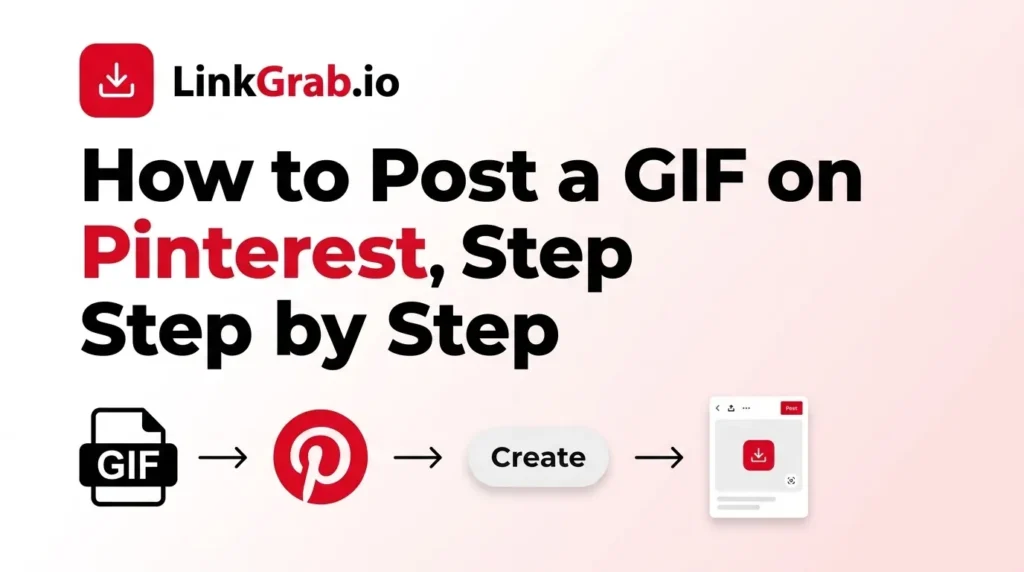
- Sign in, click Create at the top, then Create Pin.
- Drag your GIF into the upload box, or click to find it.
- Give it a title, a short description, and a link if you’ve got one.
- Choose the board it belongs on.
- Hit Publish.
In the mobile app (iPhone and Android)
- Tap the plus (+) icon, then Pin.
- Pick your GIF from the camera roll.
- Add the title, description, and link.
- Choose a board and tap Publish.
That covers the literal question. But if you actually care about the movement, and most people do, there’s a method that works every single time.
The reliable way to make a GIF animate: convert it to MP4
Want the animation to play in the feed without crossing your fingers? Convert the GIF to MP4 and upload it as a video Pin. Pinterest reads video as something meant to move, so it autoplays and loops the way you pictured.
Turn the GIF into MP4
Free browser tools do this in seconds. Ezgif, CloudConvert, and FreeConvert all handle it cleanly. Drop in the GIF, export as MP4, download. The file almost always comes out far lighter than the original, which your load times will thank you for.
One thing I’ve learned the hard way: shorter loops just look better. Trim anything past three or four seconds. A tight, repeating clip feels deliberate, while a longer one tends to read like a video that got cut off mid-thought.
Upload the MP4 as a video Pin
From here it’s identical to posting an image. You’re simply choosing the video file this time. Add the title, description, link, and board, then publish. Now it moves in the feed itself, not only on the detail page where nobody’s looking.
Pinterest GIF size and format requirements
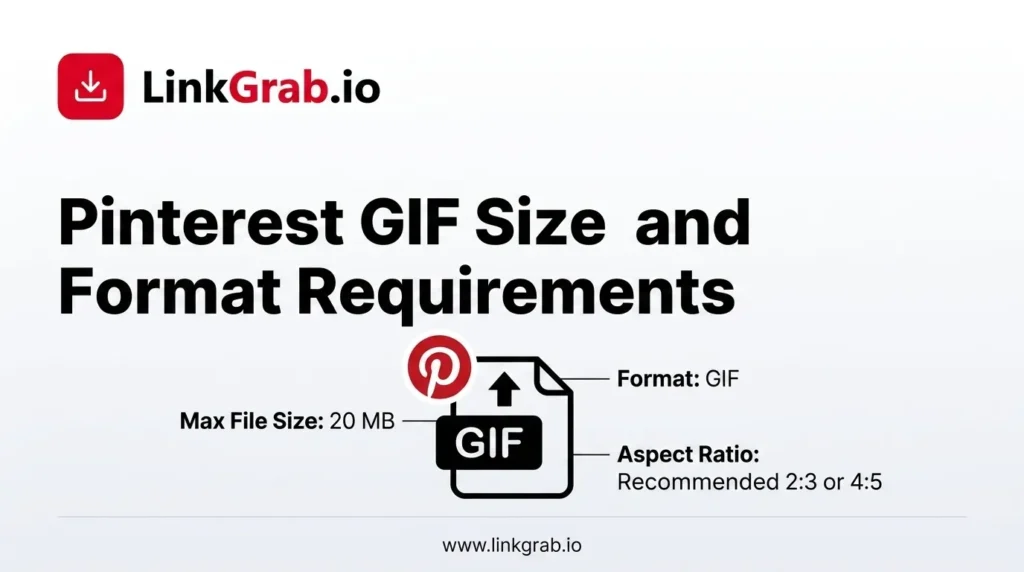
Dimensions are what separate a sharp Pin from a blurry one that scrolls straight past. Aim for these:
| Setting | Recommended |
| Aspect ratio | 2:3 (vertical) |
| Pin dimensions | 1000 × 1500 px |
| Video Pin ratio | 9:16 or 2:3, vertical |
| Video length | 4 seconds to 15 minutes (Pinterest’s limits); 2 to 4 seconds is ideal for a loop |
| Video file size | Up to 2 GB, but keep it light. Smaller loads faster. |
| Video formats | MP4, MOV or M4V, encoded H.264 or H.265 |
| Best format for animation | MP4, converted from GIF |
Those limits come straight from Pinterest’s own product specs, which is worth a bookmark if you post a lot of video.
Why vertical wins
Pinterest is a tall, vertical world. A 2:3 Pin claims more of the screen as people scroll, which is why it tends to beat square or landscape clips handily. If your GIF is wide, recrop it before you convert rather than letting it squash down into a thin strip that disappears between two taller Pins.
Even with the specs right, animations can still act up now and then. Here’s how to chase down the cause.
GIF not playing on Pinterest? Quick fixes
When a GIF or video Pin won’t move, it’s nearly always one of two culprits: the app, or the file. Work through them in this order.
If it’s the app
- Update it. Older versions carry playback bugs that newer releases quietly patch.
- Clear the cache, or reinstall. Stale cache data is a classic reason media stalls.
- Check your signal. Animation has to stream, so a weak connection can leave a Pin stuck on frame one.
- Mind where you’re looking. A raw GIF may only animate on its detail page, not in the feed. Open it fully before deciding it’s broken.
If it’s the file
- Nothing moves anywhere: it went up as a GIF instead of MP4. Convert and re-upload.
- It looks soft or pixelated: the source was too small or low quality. Start again from a higher-resolution version.
- The upload bounced: the file was probably too large. Compress it, or convert to MP4, which is much lighter.
Honestly, converting to MP4 clears up most of these in one move.
Tips to get more reach from GIF Pins
A GIF that plays is good. A GIF that plays and gets found is the real win. A few small habits make the difference, and they overlap a lot with what actually goes viral on Pinterest in general.
Keep it short and loop-friendly
Motion earns the glance as people scroll, so the clip should loop without an obvious seam. Two to four seconds is the sweet spot: long enough to register, short enough to repeat without feeling like a chore.
Write words that help it surface
People forget Pinterest is a search engine, not just a mood board. The text around your Pin carries real weight. Use a plain, natural title and a sentence or two describing what the Pin actually shows, with the phrase someone would genuinely type into the search bar. There’s a full breakdown of how to write Pinterest descriptions if you want the field-by-field version, and a separate guide to where else you can add keywords to Pinterest beyond the Pin itself. Resist the urge to stack keywords. It reads badly and does nothing for you.
None of this is unique to GIFs, but it pays off most here, where you already hold the advantage of movement.
How to save or download a GIF from Pinterest
The flip side comes up just as often. You spot a GIF on Pinterest and want to keep it, and there are two ways to do that, with two very different results.
Pinterest’s built-in option
Open the Pin, tap the three-dot menu, choose Download image. The snag is that this often hands you a still frame or a stripped-back file rather than the animated GIF you were admiring, thanks to the way Pinterest stores the original. If a still is genuinely all you need, the Pinterest image downloader will at least give you that frame at full resolution, and on a phone, saving Pinterest photos to your camera roll works the same way.
Getting the actual animated file
To keep the real, moving file, a dedicated downloader is the cleaner path. Paste the Pin link into the Pinterest GIF downloader and it saves the animated GIF or MP4 straight away, in its original quality, no login required. And if the Pin turns out to be a video or a Reel rather than a GIF, the Pinterest video downloader hands you the file exactly as it was uploaded, not a flattened copy of it.
It’s the difference between a screenshot and the real thing.
Final thoughts
Posting a GIF on Pinterest is the easy part. Getting it to move is where people get stuck, and the answer barely changes: convert it to a short MP4 and post it as a video Pin. Do that, keep it vertical and brief, write a title someone would actually search, and your animation will both play and get seen. And the next time you want to save someone else’s, skip the built-in download and grab the original instead.
FAQs
-
Do GIFs work on Pinterest?
Yes, with a catch. Pinterest accepts GIFs, but they often show as a still image in the feed and only animate on the Pin’s detail page. Convert the GIF to MP4 and post it as a video Pin for dependable movement.
-
Why is my GIF not moving on Pinterest?
Usually, because it was uploaded as a raw GIF, which Pinterest displays as a static frame in the feed. Convert it to MP4 and re-upload it as a video Pin. If a video Pin still won’t play, update the app, clear the cache, and check your connection.
-
What size should a GIF be for Pinterest?
Go vertical a 2:3 ratio at 1000 × 1500 pixels, kept light on file size. Tall Pins fill more of the screen and tend to outperform square or landscape ones.
-
Is it better to post a GIF or an MP4 on Pinterest?
MP4. Pinterest is built around video, so an MP4 autoplays and loops smoothly in the feed, while a raw GIF often freezes.
-
Why does Pinterest turn GIFs into MP4?
Because MP4 is far lighter than GIF for the same animation. That keeps the feed fast and lets the clip loop reliably, which a heavy raw GIF can’t always manage.
-
Can you post GIFs on Pinterest from your phone?
Yes. Tap the plus icon, choose Pin, select your GIF or MP4, add the details, pick a board, and publish the same steps as on desktop.
-
How do I save an animated GIF from Pinterest?
Pinterest’s built-in download often gives you a still frame, so to keep the moving file, paste the Pin link into a Pinterest GIF downloader and save the original GIF or MP4.
2 thoughts on “How to Post a GIF on Pinterest (And Make Sure It Actually Plays)”