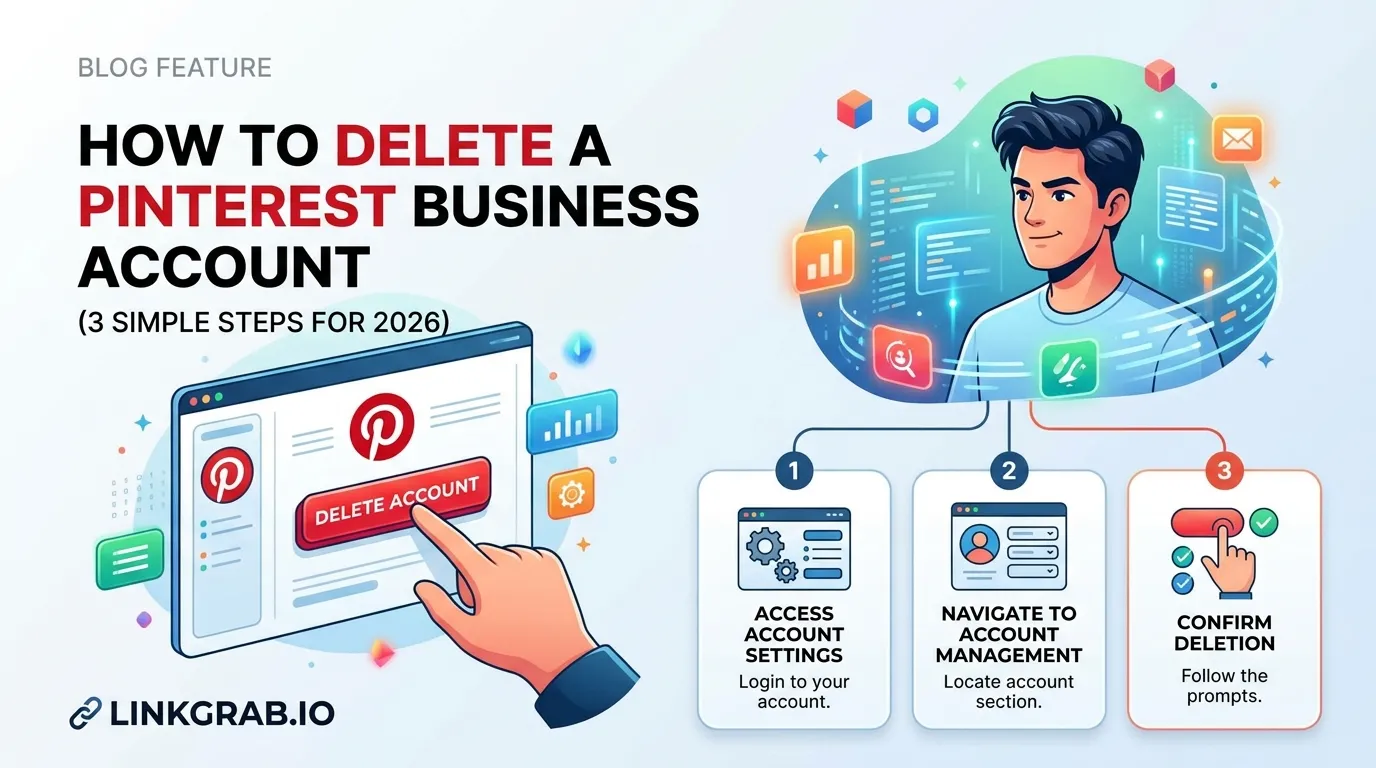
Quick Answer: To delete your Pinterest business account, log in, go to Settings → Account management → Delete your data and account → confirm via email. Your account is immediately deactivated and then permanently removed after a 14-day grace period. Read on for the full step-by-step breakdown.
Thinking about closing your Pinterest business account? Whether you’re consolidating your social media presence, pivoting your marketing strategy, or simply no longer getting ROI from the platform, deleting a Pinterest business account is a straightforward process once you know where to look.
In this guide, Linkgrab.io walks you through the exact 3-step process to permanently delete your Pinterest business account, what happens to your data, and critical things to handle before you delete so you don’t lose anything important.
Table of Contents
What Happens When You Delete a Pinterest Business Account?
Before you take any action, it’s worth knowing exactly what deletion means for your business data:

- Your public profile is immediately deactivated the moment deletion is initiated
- All pins, boards, and content are permanently removed and cannot be recovered. Before deleting your account, consider saving any important media files. With Linkgrab.io, you can quickly download Pinterest videos and download images you want to keep for future reference.
- Analytics, ad history, and audience insights are erased export them first if you need records
- Pinterest gives you a 14-day grace period if you log back in within 14 days, the deletion is cancelled and your account is restored
- Outstanding ad balances must be paid before Pinterest will process the deletion of a business account
If other users have ‘re-pinned’ your original content to their own boards, those pins will remain visible on their profiles. However, the pin will no longer link back to your deleted account, and the attribution (your profile name) will be removed or shown as a ‘deleted account’ placeholder.
Delete vs. Deactivate: Deletion is permanent. Deactivation temporarily hides your profile and content but lets you return anytime by simply logging back in. If you’re unsure, deactivate first.
Check your login method. If you created your business account using Google, Facebook, or Apple SSO, ensure you have a verified email address added to your Pinterest profile settings before you begin. If you do not have a verified email on file, you will not receive the mandatory confirmation email required to finalize the deletion.
Before You Delete: 3 Things to Do First
Skipping these steps is the #1 mistake business owners make. Take 10 minutes to do these before proceeding:
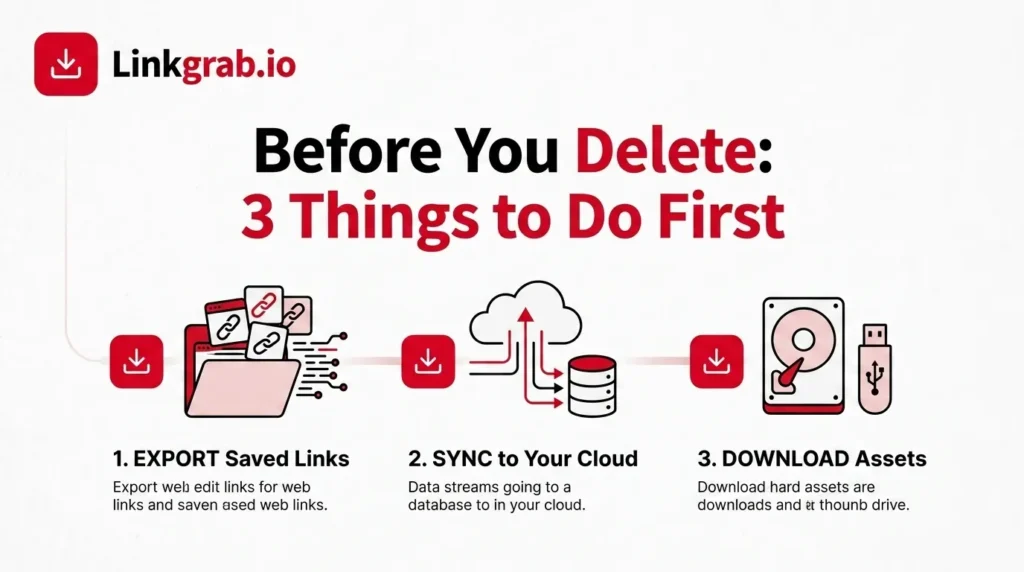
1. Download your Pinterest data. Go to Settings → Privacy and data → Request your data. You’ll receive a download link via email within 48 hours. This file contains your pins, boards, audience data, and account history; valuable if you’re moving to another platform or need records for reporting.
2. Settle any outstanding ad balances. Pinterest will not let you delete a business account if you have an unpaid ad bill. Navigate to Ads → Billing to check your balance. Pay off any outstanding amount and pause all active campaigns before proceeding.
3. Cancel active Pinterest ad campaigns. If you have live Pinterest Ads running, pause or end them before initiating deletion. Attempting to delete an account with active campaigns can trigger support issues or billing complications.
How to Delete a Pinterest Business Account in 3 Steps
Step 1 Log In and Access Account Settings
Go to pinterest.com on a desktop browser and sign in to the Pinterest business account you want to delete.
Once logged in:
- Click the down-pointing arrow icon in the upper-right corner of the screen to open the account menu
- Select “Settings” from the dropdown
- On mobile (iOS/Android): Open the Pinterest app → tap your profile icon (bottom right) → tap the three dots or gear icon (top right) → Settings → Account management → Delete your data and account.
Step 2 Navigate to Account Management and Select Delete
Inside Settings:
- Click “Account management” in the left-hand navigation panel
- Scroll down to the “Account changes” section
- Click “Delete account”
- Pinterest will ask you to select a reason for leaving choose the option that applies and click “Send email”
Pinterest will now send a confirmation email to the address associated with your business account.
Important: If you have a business account with a history of running paid ads, Pinterest may route you to their support team to complete deletion. In that case, contact Pinterest Business Support directly at help.pinterest.com and request manual account closure.
Step 3 Confirm Deletion via Email
Check your inbox for the confirmation email from Pinterest.
- Open the email and click “Yes, delete account”
- Your public profile is immediately deactivated
- Your account and all associated data are permanently deleted after 14 days
Changed your mind? Simply log back into your Pinterest account within the 14-day window. Logging back in cancels the deletion and fully restores your account.
After the 14 days have passed, the deletion is final and irreversible.
Pro Tip: To verify your account is deactivated without accidentally reactivating it, visit [pinterest.com/](https://pinterest.com/)[your-actual-username] (replace with your unique handle) and do not log in. If your profile is no longer visible, the deletion process is underway.
Alternatives to Deleting Your Pinterest Business Account
Not completely sure deletion is the right move? Consider these options first:

| Option | Best For | Reversible? |
| Deactivate account | Taking a break from Pinterest marketing | Yes log back in anytime |
| Convert to personal account | No longer need business/ad features | Yes can re-upgrade later |
| Archive or secret all boards | Preserving content while going inactive | Yes |
| Delete account permanently | Fully closing the business or brand | No final after 14 days |
Final Thoughts
Deleting a Pinterest business account is a simple 3-step process but it’s permanent. The key is to prepare before you delete: download your data, clear outstanding balances, and cancel active ads. Once you’ve done that, the actual deletion takes less than five minutes.
If you’re not 100% certain, deactivation is always the safer first step. It hides your account entirely while preserving everything, and you can return whenever you’re ready.
Frequently Asked Questions
-
Can I delete my Pinterest business account without contacting support?
Yes for most standard business accounts, the 3-step process above works directly through Settings. However, if you’ve run extensive ad campaigns or have billing disputes, Pinterest may require you to contact their support team before deletion can proceed.
-
What happens to my Pinterest ads after I delete my business account?
All active ads are cancelled and your ad account data is erased. Make sure to export any campaign performance reports you need before initiating deletion, as this data cannot be recovered afterward.
-
Will deleting my Pinterest business account affect my personal Pinterest account?
If your business account is a separate standalone account, deletion will not affect your personal account. However, if your business account is linked to your personal account, be aware that some linked data may be impacted. Pinterest now no longer allows re-linking a business account to a personal account once converted.
-
Can I convert my Pinterest business account to a personal account instead of deleting it?
Yes. If you simply no longer need business features like analytics or ads, you can convert your business account to a personal account under Settings → Account